Dashboard
The dashboard is the landing page after login. It provides an overview of your email backup status at a glance.
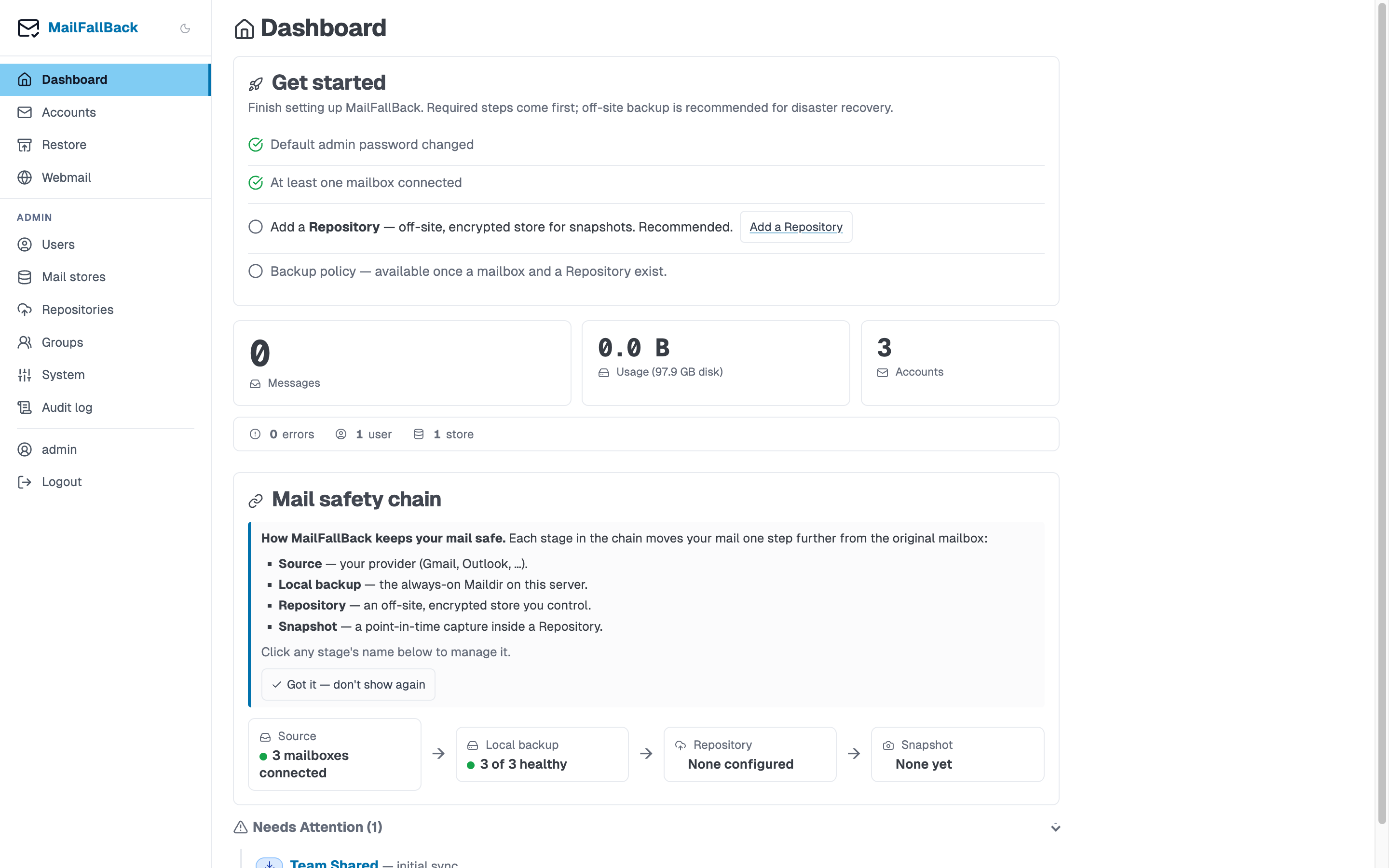
Stat Cards
The top section displays a 3x2 grid of stat cards:
| Card | Description |
|---|---|
| Accounts | Total number of email accounts configured for backup |
| Messages | Total message count across all accounts |
| Storage | Total disk space used by all backed-up mailboxes |
| Errors | Number of accounts currently in error state |
| Users | Total registered users (admin only) |
| Stores | Number of configured mail stores (admin only) |
Regular users see their own account stats. Admins see system-wide totals.
Needs Attention
The "Needs Attention" panel lists accounts that require action:
- Error state - accounts where the last sync failed. The error message is shown inline.
- Never synced - accounts that have been added but have not completed their first sync.
- OAuth expired - OAuth2 accounts that need re-authentication.
- Suspended - accounts that have been manually suspended by an admin.
Each item links directly to the account detail page where you can investigate and resolve the issue.
Recent Activity
The activity feed shows the most recent sync jobs across all your accounts:
- Account name and email address
- Status - completed, failed, running, or pending
- Timestamp - when the sync finished or started
- Duration - how long the sync took
- Summary - new messages pulled, channels synced
Click any entry to view the full sync job log.
System Status Bar
At the bottom of the dashboard, a status bar shows the health of connected services:
- Dovecot - whether the doveadm API is reachable
- Tika - whether the Tika service is available (if enabled)
- Scheduler - whether the sync scheduler is running
- Modules - which optional modules are active (webmail, FTS)
Auto-refresh
The dashboard refreshes its data periodically via HTMX. You do not need to reload the page to see updated sync status.