Restore
The restore feature pushes backed-up messages from a source account back to a live IMAP server through a target account. This is useful when you need to recover mail after an account compromise, provider outage, or data loss.
How Restore Works
- MFB creates a temporary IMAP user in Dovecot with read access to the source account's maildir
- It connects to both the source (Dovecot, local) and target (remote IMAP) accounts
- Messages are copied from the source folders to the target, folder by folder
- Progress is tracked in real time with message counts and percentage
The source backup is never modified - restore is a copy operation.
Restore Workspace
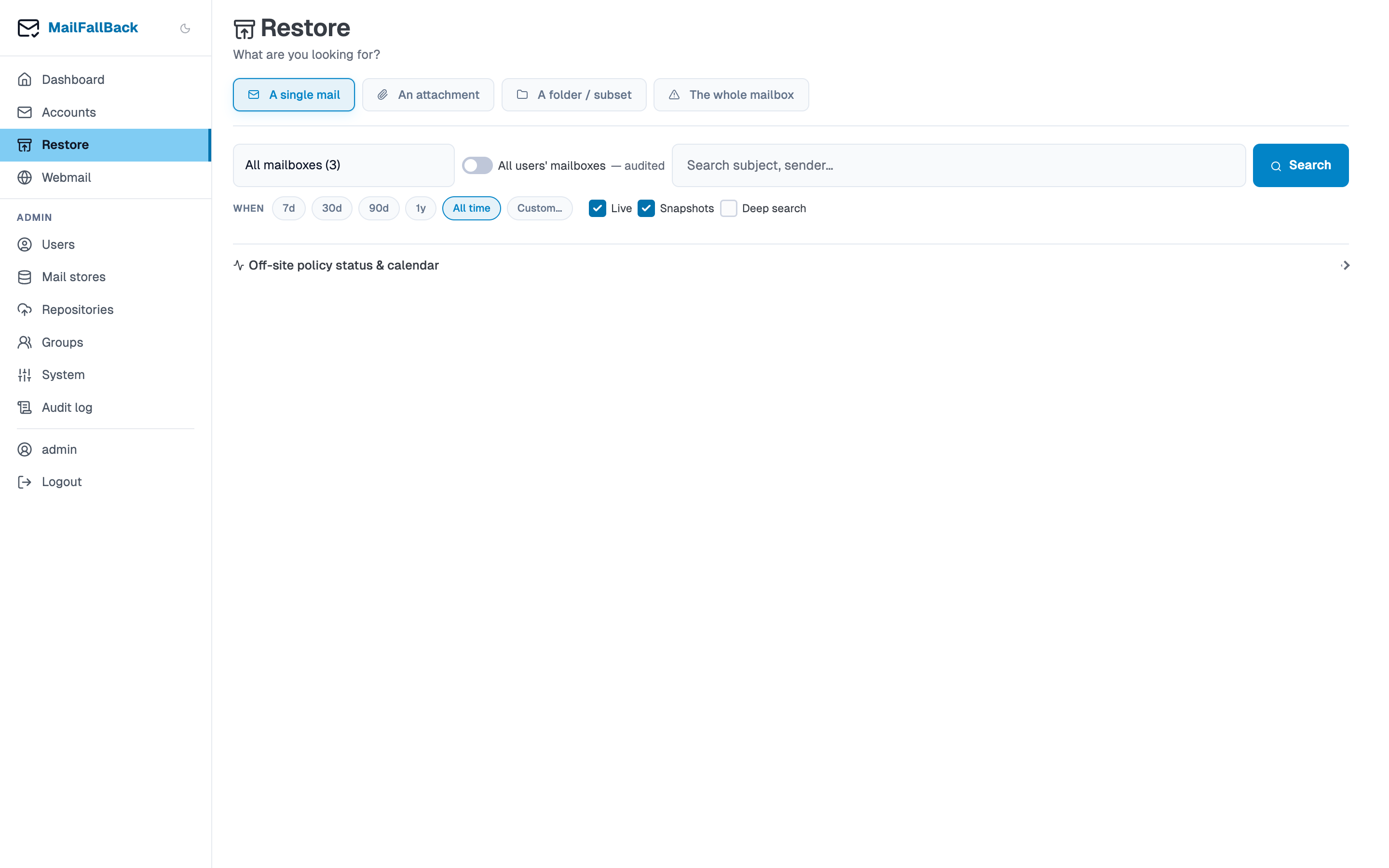
The Restore page in the sidebar opens directly into a search-first workspace instead of a bare form. A row of preset chips picks the tool for the job:
- A single mail - search for one message by subject or sender, preview it, and restore or stage it.
- An attachment - search by filename, type, size, or extracted content.
- A folder / subset - copy whole folders in full (see Creating a Restore Job below).
- The whole mailbox - copy everything from one mailbox to another.
The folder and whole-mailbox presets create a restore job immediately, using the same destination and folder-mapping options described below. The single mail and attachment presets are search-first: they let you build up a curated selection in a personal staging area before anything is pushed anywhere, or restore straight back to the message's origin mailbox without staging at all.
Searching your local backup
The search row queries the message index (subject, sender) across your accessible mailboxes - your own accounts plus any mailbox shared with you through a group. Admins can widen the scope to every mailbox on the server with the All users' mailboxes toggle; that escalation is written to the audit log.
A row of When chips (7d / 30d / 90d / 1y / All time / Custom…) narrows the search by date, and each result shows whether the message is still live in the local backup, only survives in one or more snapshots, or is gone from both.
Deep search
The Deep search toggle (single-mail preset only) adds a live,
full-folder body search over Dovecot on top of the index query - useful
when the words you're looking for are only in the message body, which
isn't indexed by default. It only covers folders still in the local
backup (snapshot-only mail is not body-searched), runs with a soft
timeout (MAILFALLBACK_DEEP_SEARCH_TIMEOUT_SECONDS, 10s by default),
and surfaces a "Partial results" warning if it times out before checking
every folder.
Searching attachments and their content
The attachment preset searches indexed attachments by filename, and can narrow by Type (PDF, Documents, Sheets, Images, Archives) or Size (over 1 MB). Results carry the same live / snapshot / gone badges as message search, and each row can be downloaded directly or opened in the preview pane.
Attachment content search (Tika)
When the administrator has enabled Apache Tika
text extraction (MAILFALLBACK_TIKA_ENABLED=true), a Search inside
attachments checkbox appears. With it checked, the query also matches
text extracted from the attachment's contents - not just its filename -
and matching rows show a highlighted snippet of the matched text. The
checkbox is only shown when content search can actually work; without
Tika enabled, attachment search stays filename-only.
Restoring without staging
Selecting one or more results and clicking Restore selected -> skips staging entirely: it resolves each message back to its own origin mailbox and restores it there directly, using the same duplicate-safe copy as any other restore job. This only works for messages still live in the local backup - snapshot-only hits are skipped (and reported as such), since a direct restore has no local file to copy from. Route those through staging instead, which can pull the message from its snapshot.
Staging a curated selection
Add to staging copies the selected messages into a personal staging area - a temporary per-user Maildir folder, separate from the local backup, that lives on until it expires or you empty it. It exists to let you build up a selection across several searches (and, unlike a direct restore, it can pull in snapshot-only messages too) before deciding where any of it goes.
- There is one staging area per user. Every account you can access can contribute messages to the same area.
- If webmail is enabled, the staged messages appear as a Staging folder you can browse like any other mailbox before pushing.
- The docked staging bar at the bottom of the workspace shows the current message count, bytes used, and time left, and stays visible across every preset while the area exists.
- Empty removes the staging area (files and rows) immediately; otherwise it is purged automatically once it expires.
Expiry and quota are fixed, not extended
A staging area expires a fixed time after it was first created
(MAILFALLBACK_STAGING_TTL_MINUTES, 7 days by default) - adding more
messages does not push the expiry back. Adding to an already-expired
area starts a brand new one. There is also an optional total-size quota
(MAILFALLBACK_STAGING_MAX_BYTES, unlimited by default); a batch that
would exceed it is rejected outright before anything is copied, so a
quota hit never leaves a partial add behind.
Pushing staged mail to a target
Push upstream on the staging bar opens a panel with two choices:
- Destination - either each message back to its origin mailbox, or everything into one chosen mailbox.
- Folder - original folder (recreated on the target if missing),
everything into
Restored/<today's date>, or a custom folder (validated, created if missing).
Confirming the push creates one restore job per distinct target account - pushing 40 staged messages that came from three different mailboxes back to their origins starts three jobs, one per mailbox. Every push job runs the same Message-ID based duplicate detection as any other restore job (see Options below), so messages already present on the target are skipped rather than duplicated. If a target can't take a job right now (already busy with a pending or running restore, suspended, migrating, or missing credentials), its messages simply stay staged and are reported as skipped for that push - nothing is lost, and you can push again once the target is free. Staged files and rows are only removed once the worker confirms each message actually landed on the target, and messages you deleted from the Staging folder in webmail before pushing are dropped from the push automatically.
Creating a Restore Job
- Go to the Restore page from the sidebar
- Select the source account - the backed-up account to restore from
- Select the target account - the live IMAP account to push mail into
- Choose a restore mode:
- Full - restore all messages from all folders
- Folder - select specific folders to restore
- Selection - restore individual messages by UID (advanced)
- Configure folder mapping and options
- Click Start Restore
Folder Mapping
| Mode | Description |
|---|---|
| Original | Folders are created on the target with the same names as the source |
| Flat | All messages go into a single target folder |
| Prefix | Folders are prefixed with a custom string (e.g. Restored/INBOX) |
Options
- Skip duplicates (default: enabled) - checks Message-ID headers to avoid restoring messages that already exist on the target
Folder separator differences
Different IMAP servers use different folder separators. Gmail uses /, Exchange uses ., and some servers use ~. MFB maps separators automatically, but deeply nested folders with unusual characters may need manual attention.
Monitoring Progress
Once a restore job starts, the page shows:
- Status - pending, running, completed, or failed
- Progress bar - restored / total messages with percentage
- Folder breakdown - per-folder progress
- Skipped count - messages skipped due to duplicate detection
- Error count - messages that failed to restore
The page updates automatically via HTMX polling.
Cancelling a Restore
Click "Cancel" on a running restore job. The job stops after the current message completes. Messages already restored remain on the target.
Restore History
The restore page shows a table of all past restore jobs with:
- Source and target accounts
- Status and progress
- Start and completion times
- Error details (if failed)
Admins can view restore jobs from all users by toggling "Show all users".
Jobs created by a staging push show up here too, alongside jobs from the classic form and the workspace's folder/whole-mailbox presets - they're all the same restore job under the hood.
Limitations
- Restore requires the target account to have valid IMAP credentials (app password or OAuth2)
- The target IMAP server must support APPEND operations
- Message flags (read, flagged, etc.) are preserved during restore
- Internal dates (received timestamps) are preserved
- Large restores may take significant time depending on message count and network speed
- Deep search and "Restore selected" both need the message to still be live in the local backup; snapshot-only mail must go through staging, which reads from the snapshot instead
- Attachment content search requires the administrator to enable Tika; without it, attachment search matches filenames only